You know what your going to say. What images will you use and how can you make them work for you so that you get your website ranked on the first page of search engines?
Before I start creating a web page I think of what images I may need and what I am going to say. I also think of what keywords people may enter into a search engine that would help them find the page. With these ready, I can create all the necessary components to properly manage images to maximize my page's potential
Prepare the image
Image size is a big factor. Your web page will use bandwidth whenever a page has an image on it. Before you upload, re-size that massive photo you took to a web friendly size that is as small as possible while maintaining the images' quality. Using a huge 2.2 meg image may be great for high definition, but for most cases a 250 KB one will do. Check the image dimensions as well. If the image is going to be used to span the entire width of the page, the maximum width you'll need is around 900px. The image module does re-size your image on upload, but it also stores the full size image for lightbox type displays as well. If you would like some tips about images read these top SEO tips and tricks for images
use the image upload module

to get the image upload module, click upload image from your image manager. click browse and find the image you want to upload
Choose a title for the image

Name your image using your keyword phrases this title will also become the filename for the image on your server. They are another way of telling search engines what this page's content is going to be about. They also tell searchers what they can expect to find related to it. Search engines figure that if a page contains an image called "fashion-diva-Donatella-purple-shoes-in-Cork-window.jpg", the page will about shoes, fashion, maybe even a bit about Donatella Versace and also be relevant to Cork City or Cork County. Web searchers typing in any of those things may find your website page because of that. Use hyphens to separate words (-) not underscores (_). Google sees hyphens as word separators and underscores as word joiners so lovely-image-name becomes lovely image name where lousy_image_name becomes lousyimagename.
Fill In a caption

if you do, ever want a slideshow and may want to use this image in it, giving the image a caption will show up in the slideshow if you set the slideshow to display the caption, it is also used in galleries and lightbox effects.
Fill In the alt tag

the image alt tag gives a description of the image to display if the image is not available OR if a text reader is used (like for vision impaired people – images are not shown to them obviously!). But more importantly for the SEO and images it is used by search engines to find out what your image is about. So what should we put in the alt tag of an image? Try to write a description of less than 150 characters that tell the engine what the page content is about. Put your keyword phrases towards the beginning. Google and Bing webmaster tools will check every image they find on your website for the Alt tag and if it is not found they report this as an error so do use them!
Choose a File folder
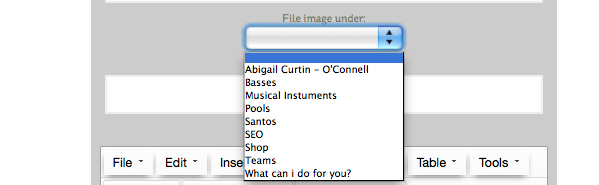
After a while your website could have thousands of images. Sorting them out in advance is a good idea. choose which file folder You would like to sort the image into.
create a new folder

If there was not a match for you in the above dropdown, you can create a new one here. Pick as short as you can name for your file that makes sense to you. It will now become part of the drop downs so you can find that file folder easily
Enter a description
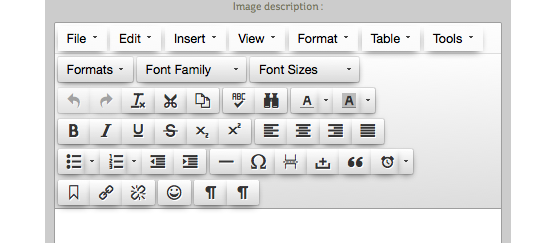
When images appear in a slideshow, you can choose to show this description. It can have a powerful effect for your website users to see images and also see text with them like little mini pages. If you are not sure about his, you can always edit your images at any time and update this feature
,
Upload and save

when you press upload, the image gets put through an image processor to make a thumbnail, an avatar, a small image about 400px wide and stores the original image with it's new name.
Edit one of the Images

Click Edit on the Image. You can now use the the Image processor to update the Image to suit the slideshow or page you may want use it in. If you would like to Just change the details of the image like the caption or description, in the image title box enter a new name that is different from the one that is already in the image title box. This will keep the old Image and it's details intact and create a new one that you can write new content for to use in this slideshow. Wherever you, have the used image before will remain the same as before. If you would like it to be this newer version, update your CMS and slideshows to include this newer version. It has a new name and your website needs to know to use the new one.
You can also just change one of the options like caption, Alt, File or description and keep these changes for this image only. Everywhere you have used this image on the website will now also be updated as you have not changed the actual title or name of the image
Change the Image itself

You want to keep all the data about the image the same but want a new picture? Click browse and choose the new image from your files. When you click update, all of the other information will remain the same and your new image is now switched all over your website where you have already used it.
Save your Image edits

Click Update Image. Your new image is now in place. Clicking delete will delete the image from the server and anywhere you may have used it will now have a broken link. Make sure you have not used the image already before you delete the image. This is permanent and cannot be reversed
Images and uploading

